Halloween Tricker!

Halloween Tricker

What’s Halloween Tricker?

It’s a Pumpkin that can play different kinds of customised sounds while blinking. You can play a trick on your friends simply press a button on your presenter at a distance.

How does it work?

It receives the signal from a normal RF presenter with a USB receiver , then Raspberry Pi runs a python program that can read the presenter’s event value. With the help of mini speaker system, you can play any kind of sounds as long as it can be stored into the Raspberry Pi, such as screaming, laughter and some scary monster’s voice etc. Then an Arduino board is used to control a loop to blink the LEDs after connecting Raspberry Pi and Arduino using a jumper wire together.

6 presenter IMG_3236


Discussions and further improvements:

If can successfully DIY a set of LED that can be reactive with the strength of sounds output, then Arduino is not needed. After tried e analog to digital circuit, using a TIP31C transistor and 9V battery and 3.5mmP2 plug, it can only works on PC, under high volume condition. I think it’s because the audio current output of Rpi is not high enough to active transistor. For further improvements, I would like to try using a more complex circuit with more high-pass and low-pass filters, or using a NMOS transistor with a lower Vsat, or try TIP31A instead of TIP31C, which I believe will work.

Continue reading

Make music reactive LED (2nd try)

outside

This is the second try of making music reactive LED.These LED are brighter than the normal ones, more expensive of course. First we strip the 3.5mm P2 plug and solder them with wires.

p2 plug soldering strip plug

Also the transistors.About the circuit you can find it in previous post here.transistor transistor2

Well, here the problem still is : how to make LED flash to music at low volume.

Maybe next time I should design a better circuit, using capacitors and transistors together to act as a high-pass or low-pass filter, transfer analog signal to digital signal more sensitively, like some people once did Sound to Light with an microphone. Or can try using an NMOS transistor switch, choose one with a low Vsat. Some person gave an answer on Yahoo answers two years ago. Or maybe just using transistor TIP31A instead of TIP31C…maybe…

Well, just thinking of improvements.

Blinking LEDs controlled by Arduino

arduino

The picture above is the Arduino part of functions.

On the right end of breadboard, I use a wire simply represent a protection pushbutton to control the whole loop. Only if the wire is connected the LEDs can blink later.

Then leave pin 8 as input from Raspberry Pi’s GPIO. Once the pin get a HIGH impulse, LED blinking loop will be executed twice.

The code for Arduino is as follows:

const int buttonPin = 7; 
const int ledPin = 2; 
const int rpiPin = 8; //pin8 is connected to Raspberry Pi GPIO 25

int buttonState = 0; //set initial variables to 0
int rpiState = 0;
int i = 4; //set i to any contant that larger than 2, just not to execute the led blinking part.

void setup() {
   Serial.begin(9600); //open serial port, set data rate to 9600 bps
   pinMode(ledPin, OUTPUT); 
   pinMode(buttonPin, INPUT); 
   pinMode(rpiPin,INPUT) ;
}

void loop(){
   buttonState = digitalRead(buttonPin);
   rpiState = digitalRead(rpiPin);
   Serial.print(buttonState);
   Serial.print(rpiState);
   if (rpiState == HIGH ){i=1;} 
   if (buttonState == HIGH) { //just loop twice
   while (i<=2) { 
  digitalWrite(ledPin, HIGH);
  delay(100);
  digitalWrite(ledPin, LOW);
  delay(200); 
  digitalWrite(ledPin, HIGH);
  delay(400);
  digitalWrite(ledPin, LOW);
  delay(300); 
  digitalWrite(ledPin, HIGH);
  delay(200);
  digitalWrite(ledPin, LOW);
  delay(200); 
  i++;} 

else {
  digitalWrite(ledPin, LOW); 
  i=1; 
}
}

Raspberry Pi GPIO connected with Arduino

OKAY now I’m back here using Arduino to control LEDs.

I connect GPIO.25 on RPI with Arduino Pin 8. Remember to connect GND to GND to get them synchronised。While RPi is a loop sensing the RF signal input, once it need to blink LED, it generates a Pulse to Arduino. Then Arduino will execute the Blinking LED loop, at the same time RPi is playing sounds stored in its memory initially.

RPIArd

How to use RPI GPIO(General Purpose Input Output) you can find information here.

RaspberryPi-GPIO-Layout

I write a python code named pumpkin.py. Then can use

sudo python pumpkin.py

Below is the code that can perform the functions of sensing RF signals, playing sounds and ask Arduino to blink LEDs at the same time.

I add one more function, use the down button on controller to stop the loop and exit the program.

from evdev import InputDevice
from select import select
import os
import time
import RPi.GPIO as GPIO
dev = InputDevice(‘/dev/input/event0’)
m=1
n=1
o=1
b=1
GPIO.setmode(GPIO.BCM)
GPIO.setup(25,GPIO.OUT)
GPIO.output(25,GPIO.LOW)

def blink():

GPIO.output(25,GPIO.HIGH)
time.sleep(0.1)
GPIO.output(25,GPIO.LOW)
return

while b==1 :
r,w,x=select([dev],[],[])

for event in dev.read():

if event.value == 458827L:

print ‘left’
m=m+1
if m%2 == 0 :
    blink()
    os.system(‘aplay thunder.wav’)
continue

elif event.value == 458830L:

print ‘right’
n=n+1
if n%2 == 0:
    blink()
    os.system(‘aplay laugh.wav’)
continue

elif event.value == 458757L:

print ‘up’
o=o+1
if o%2 == 0 :
    blink()
    os.system(‘aplay monster.wav’)
continue

elif event.value == 458977L or event.value == 458814L or event.value== 458793L:

print ‘down, off’
b=0
continue

Make sounds reactive LEDs

TO make this LEDs blinking with music, you need these following:

1. 3.5mm P2 plug, can get from old earphones. Strip wires,twist. In my case, I found three different colour wire, black is ground, one is left channel and the other is right channel. Slip three wires, solder them with external wires, wrap each bunch with  insulating tape.

2. 3.5mm audio splitter

3.9V DC power(battery). Battery box with switch.

4.TIP 31C transistor

5. 4 * 5mm red LED

6. wire and soldering iron

circuit

Draw circuits and test before I solder all these things. Make sure the connections are right then wipe exposed wires with insulating tape. Make sure prongs and wires do not touch.

LED music test

Tidy them.

However, when I test it using PC, I need to set it almost 80% of total volume. While I test it on Raspberry Pi, it just cannot work. Guess the current from audio output not enough. BUT I HAVE SOLDERED THEM TOGETHER…..

Play simple sounds on Raspberry Pi using Python

1. Firstly, according to 4DC5.com, I know that I must set up file sharing between Mac and Raspberry Pi first.

On RPI’s Terminal, type in:

sudo apt-get install netatalk

then open Finder, press commond + K, type in aft://192.***.*.***(RPI IP address), you can get access to all the files in RPI now!

file sharing


Then download some wav format sounds from here and drag them into RPI.

2. Enable sounds module and Audio Output, Install sounds player.

sudo apt-get install alsa-utils

sudo apt-get install mpg321 #mpg321, to play mp3 format sounds

sudo apt-get install lame     #aplay, to play wav format sounds

sudo modprobe snd-bcm2835

amixer cset numid=3 1

3. Install python module Rpi.Gpio. (for further use)

sudo apt-get update

sudo apt-get install python-dev

sudo apt-get install python-rpi.gpio


4. Write your Program, Execute it!

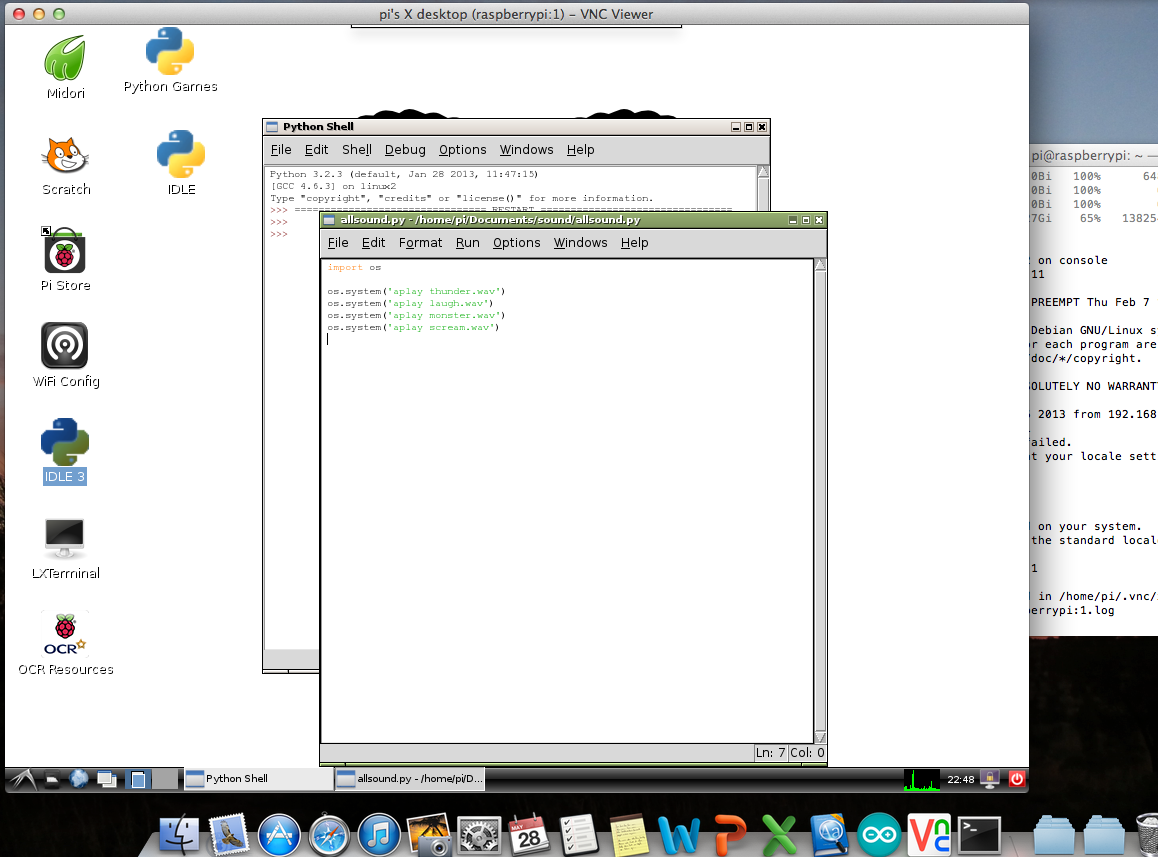
run python


cd Documents/sound

chmod +x allsounds.py

sudo python allsounds.py

I write a simple python file named allsounds.py. Use chmod to make file executable. All done!!!

Control Raspberry Pi via ipad and iphone.

If you install VNC viewer on your iPhone and iPad, you can also set Raspberry Pi IP address 192.***.*.***  :1 . The software is not free in apple store. But if you do a JailBreak…….

vnc on ipad              vnc on iphone

By installing VNC server on Mac,you can also control your Mac through your iPhone and iPad…Just for fun.

PS: All my devices are under LAN wifi environment using TP-link router.

mac on ipad       mac on iphone

Control Raspberry Pi via SSH and VNC server

It’s a bit inconvenient for me to use TV as display each time. So I’m thinking of using my Mac as display. Luckily, I found some better way to remote control my RPI via SSH and VNC.

vnc on mac


I found some information on 4DC5.com about how to set up VNC. Before that , log in from Mac’s Terminal Window.  Then connect RPI and Mac with Ethernet Cable, open System Preferences, tick Screen Sharing and Ethernet sharing(from Wifi to Ethernet if your Mac is connected to web via wifi).

Then can use a Pi finder to find out the RPI’s IP address. That may take a long time. Once get the IP address, log in to Terminal, type in:

ssh pi@192.***.*.***                  ,   then the system requires your password, default is raspberry.

If  got denied about something related to .ssh/known_hosts change, we can try

ssh-keygen -R 192.***.*.***                to update the hosts.


Once successfully log in, you can control RPI through Mac now.

Then can start install VNC server.

sudo apt-get update

sudo apt-get install tightvncserver


During the long process that RPI installing vnc server, you can visit Realvnc.com to download and install VNC viewer and VNC server(opt) on Mac. Some people recommend Chicken, however it doesn’t work on my Mac and I don’t know why.

To start VNC, first need a password for VNC.

vncserver :1

vncpasswd


then the password just set is the one that we use on Mac to match between VNC viewer on Mac and Vncserver on Rpi. So once open VNC viewer, the IP address of Rpi should be 192.***.*.*** :1 ,  finish~!


Get started with A Raspberry Pi and Write image to SD card

How to get a Raspberry Pi in Singapore? Actually you can buy one online, or go to Cybermind Computer House Pte.Ltd @Sim Lim Square, #06-20.

It’s $59 SGD for a Model B. This is what I got. The size of a credit card, shorter than iPhone.

Raspberry Pi Model B                    things you need to set up rip                  rpi_setup

Then I downloaded the wheezy raspbian SD card image from Raspberry downloads. (on my Mac) If you are a Windows users, you can simply use a tool win32diskimager to write the image onto a SD card.     Then you need several things to first set up your Raspberry Pi.

  • USB keyboard. USB mouse(optional)
  • 5V power supply
  • USB hub with power supply(Keyboard will consume current, causing some problems.)
  • HDMI cable
  • TV or other display that allows HDMI input
  • SD card. At least 2G according to forum, but I use 8G Sandisk SDHC card.

As a mac user, you can directly run Terminal to write the image. Type in these command lines in Terminal:

df -h                    #this is a list of all your drives . Then insert SD card onto Mac.

df-h                     #this is a renewed list of all the drives including SD card. By comparison we can know the disk name of SD card.

sudo diskutil unmount /dev/disk1s1          #eject the SD card if says dis1s1

sudo dd bs=1m if=~/Desktop/****.img of=/dev/rdisk1         # use dd command to write the ***.image, SD card name is rdisk1 accordingly.

sudo disktuil eject /dev/rdisk1

Then insert SD card to Rpi, connect with TV and power supply. When set the system configuration, enable SSH to allow remote control.Select Time zone and language.

A Raspberry Pi is ready now!~